Presentations
We are happy to provide you different templates in format 16:9 for the presentations according to the software you are using.
We have prepared a short introduction, “Presentation Guidelines” in each of them. Once you have downloaded the presentation, you will find several slides, which may be helpful.
After you have read the slides, please delete them and start your presentation from the beginning.
Two templates are available for MS Office users PPT presentations.
The first is a template strictly for CERN use, while the second can be customised for a particular body, project or event. The two templates must not be combined within the same presentation.
The CERN templates contain many different layouts, theme colours, fonts as well as a suggested table format.
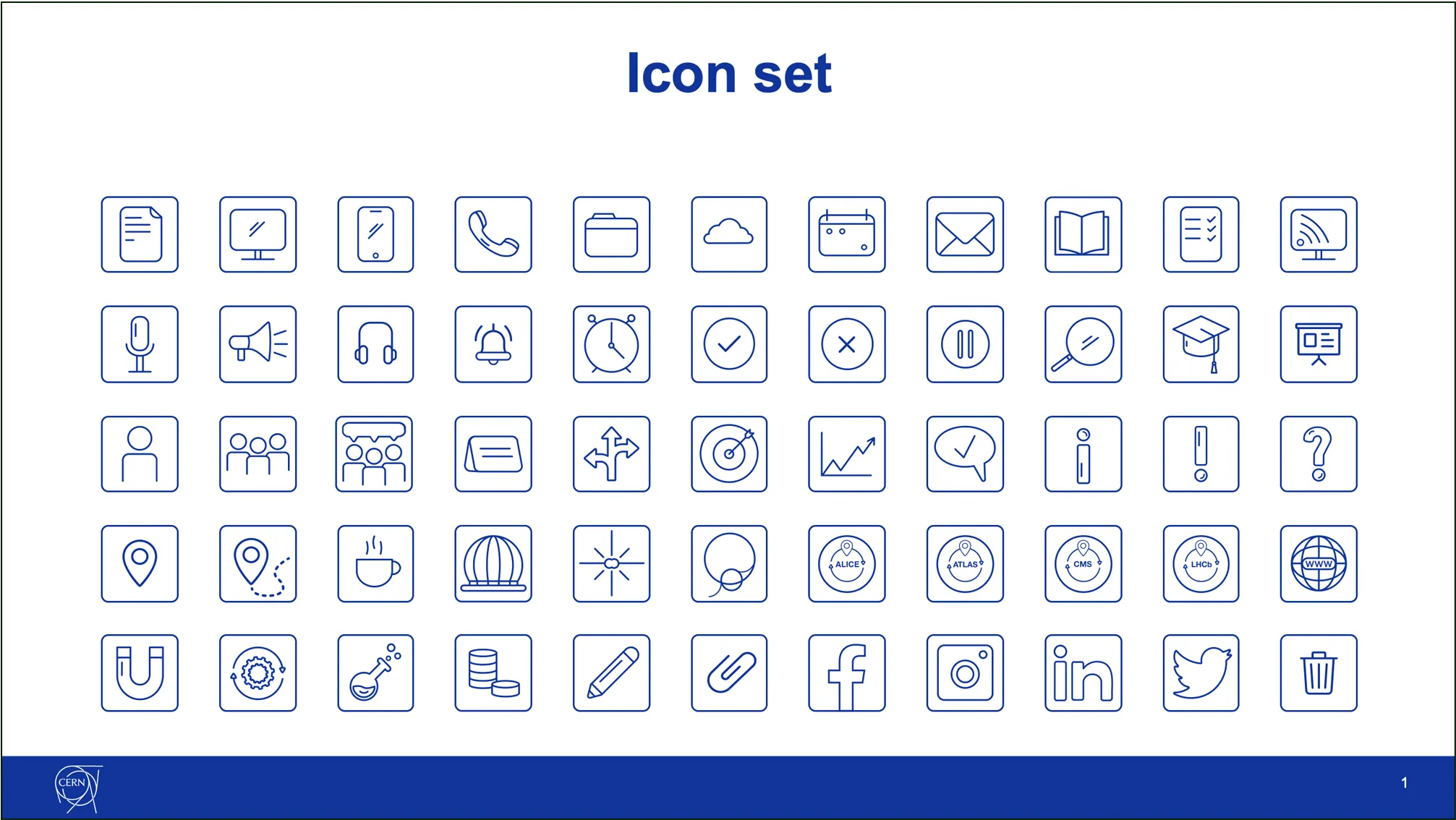
In order to help you to create more powerful presentation, we have prepared a set of icons, which you can find in the “Downloads” section.
You will find as well the templates for open source alternatives to Microsoft Office: LibreOffice and OnlyOffice. There are some differences between these three software packages. Both those open source software solutions are in active development, and so their features evolve regularly.
One of the differences can be noticed when pasting or dropping an image into a placeholder: OnlyOffice and LibreOffice don’t automatically fit that image to the placeholder. The image has to be resized manually.
Please also note that Libre Office users file format ODP (OTP template), which is not fully compatible with PPTX (POTX template) format used by Microsoft Office and OnlyOffice.
Templates are available in the “Downloads” section (authentication required): https://design-guidelines.web.cern.ch/downloads
Example slides
Title slide with logo
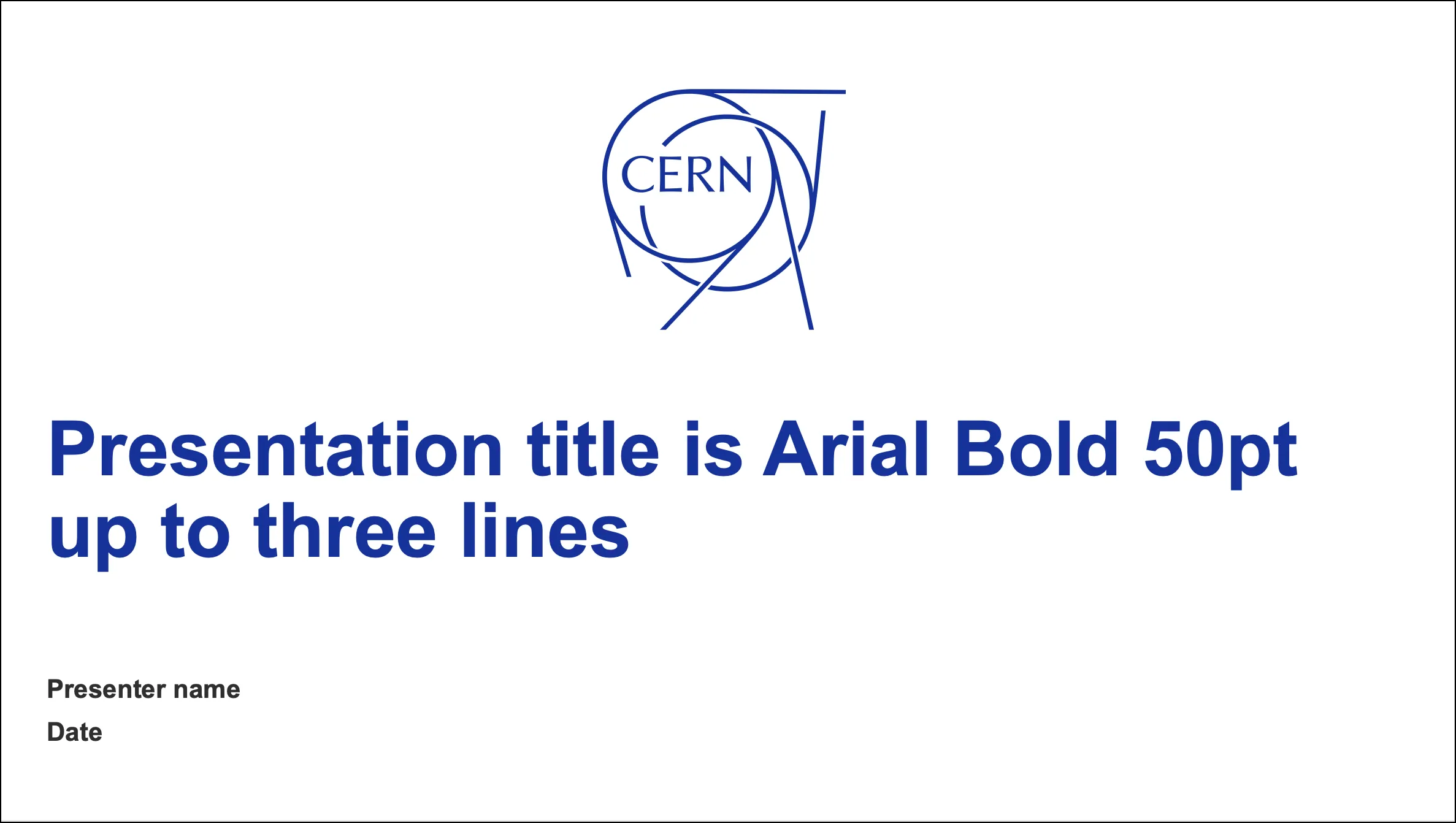
Each presentation should begin with this slide.
Examples of how your presentation can look
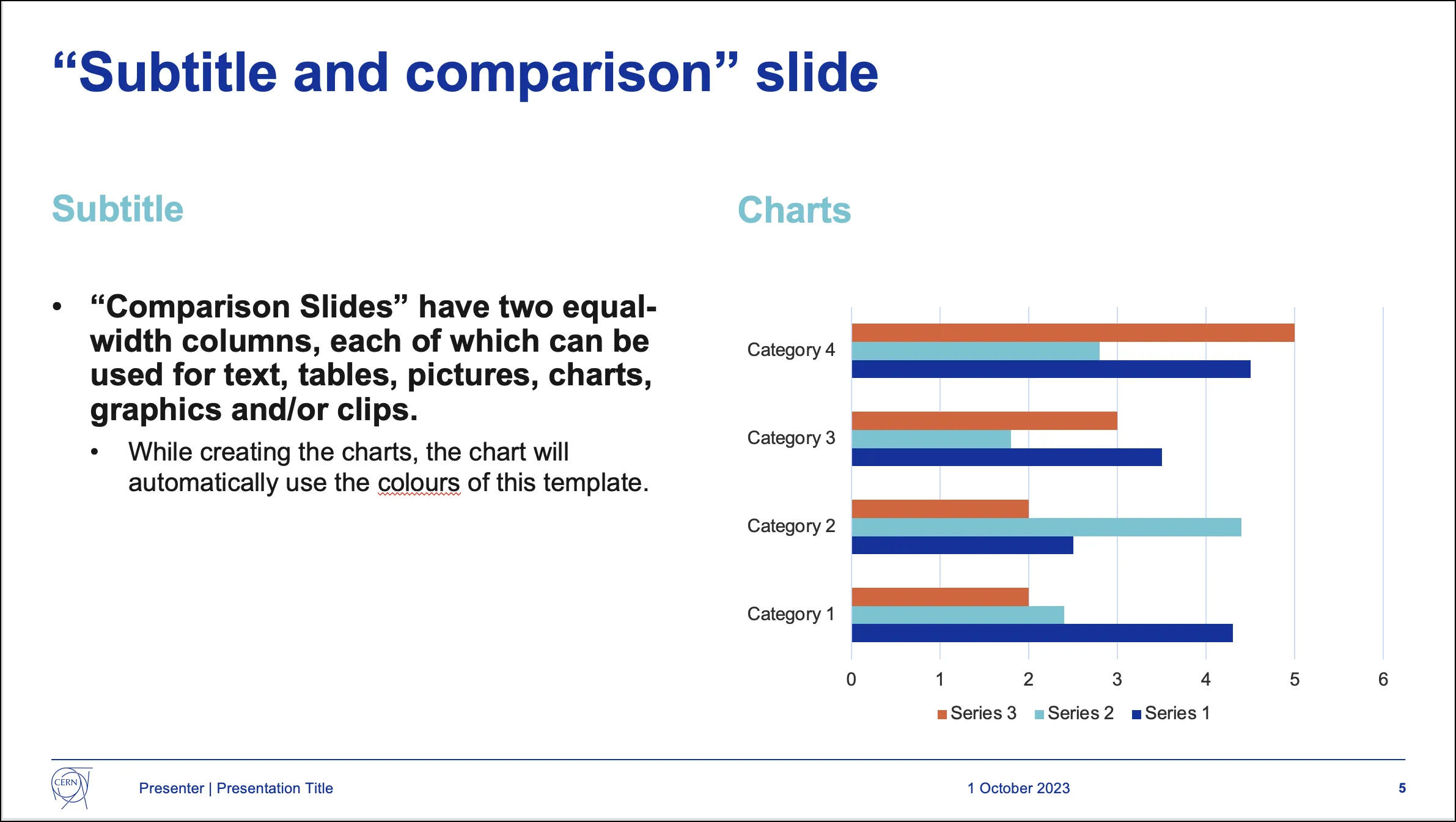
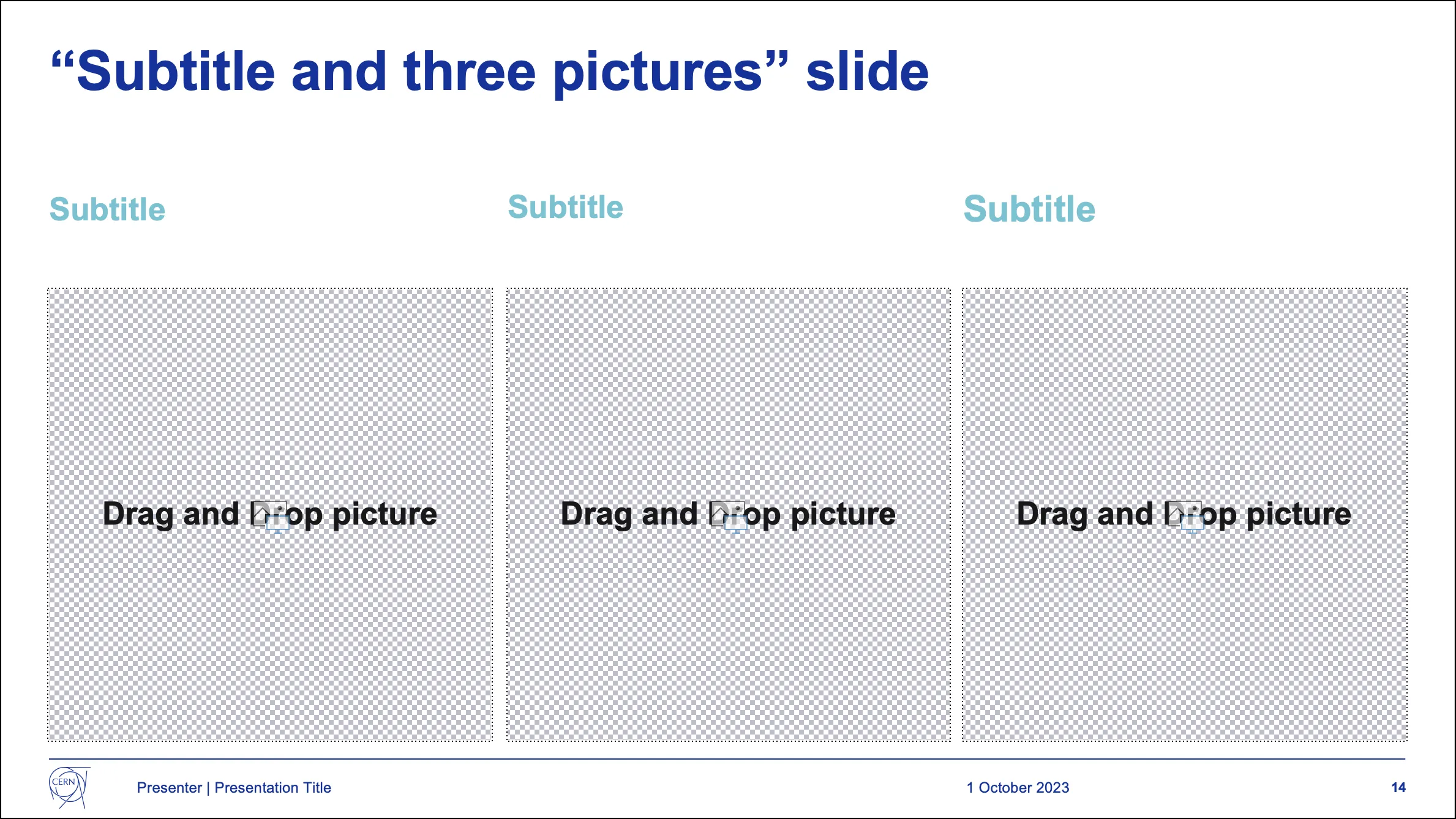
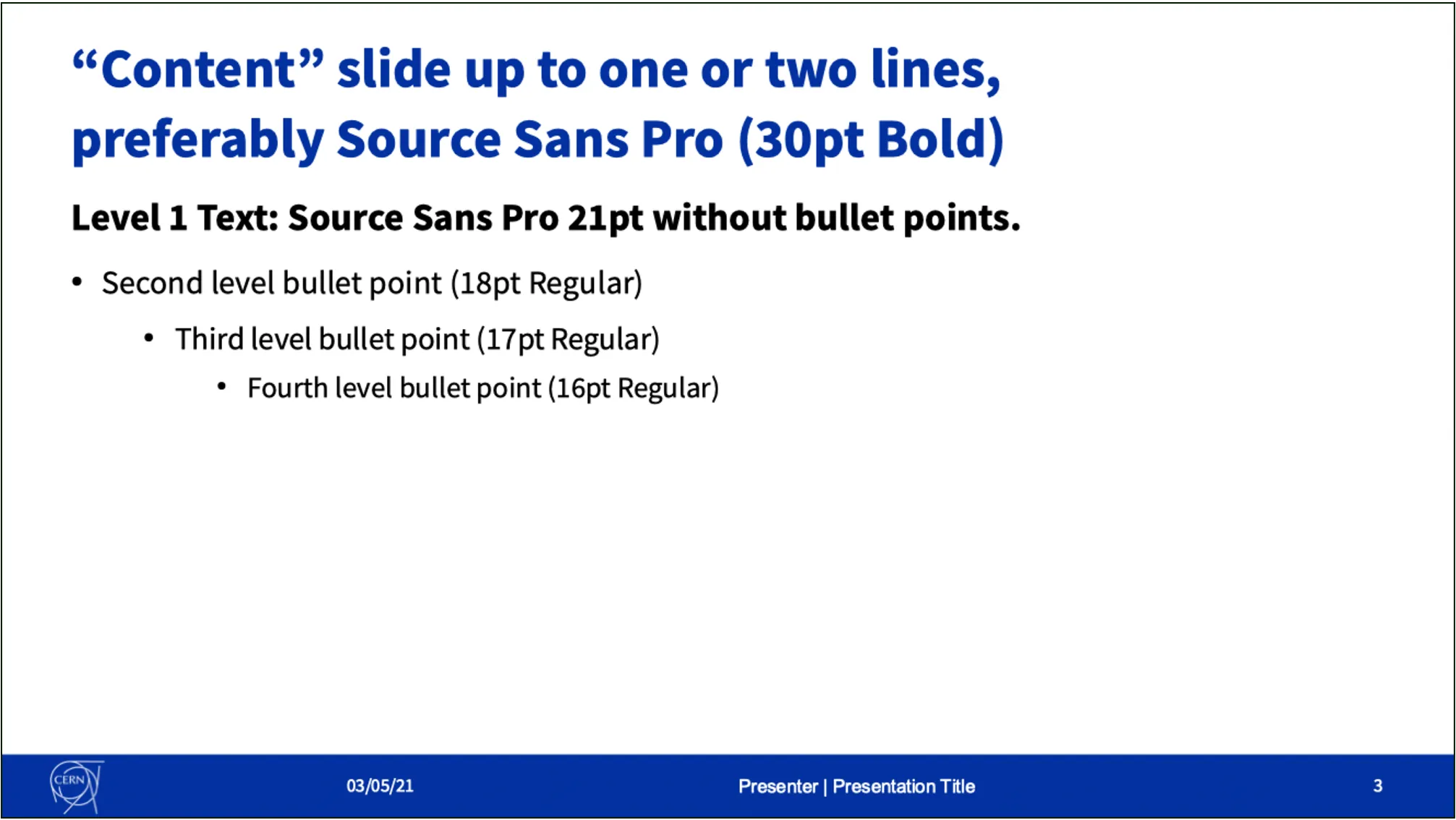
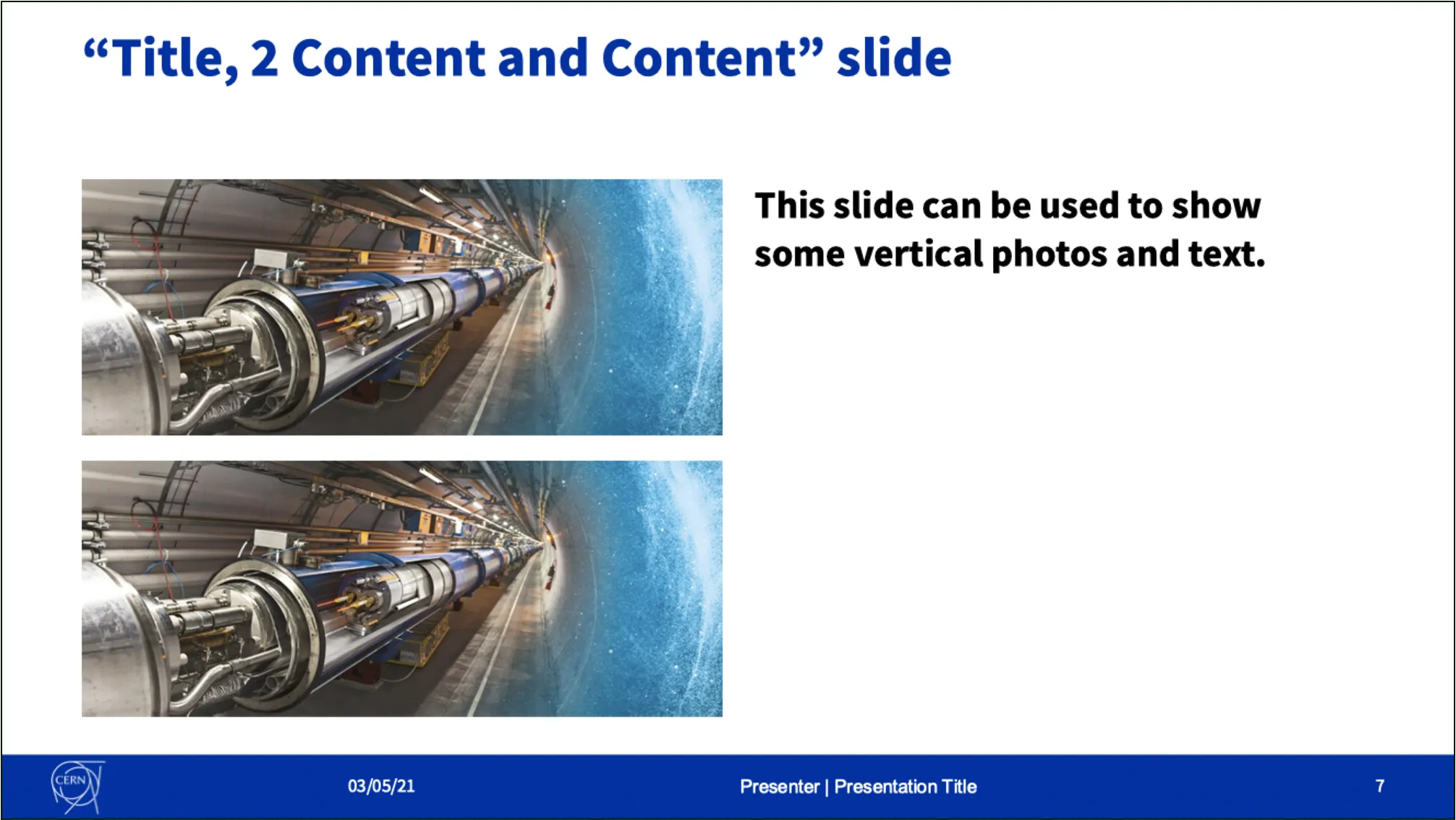
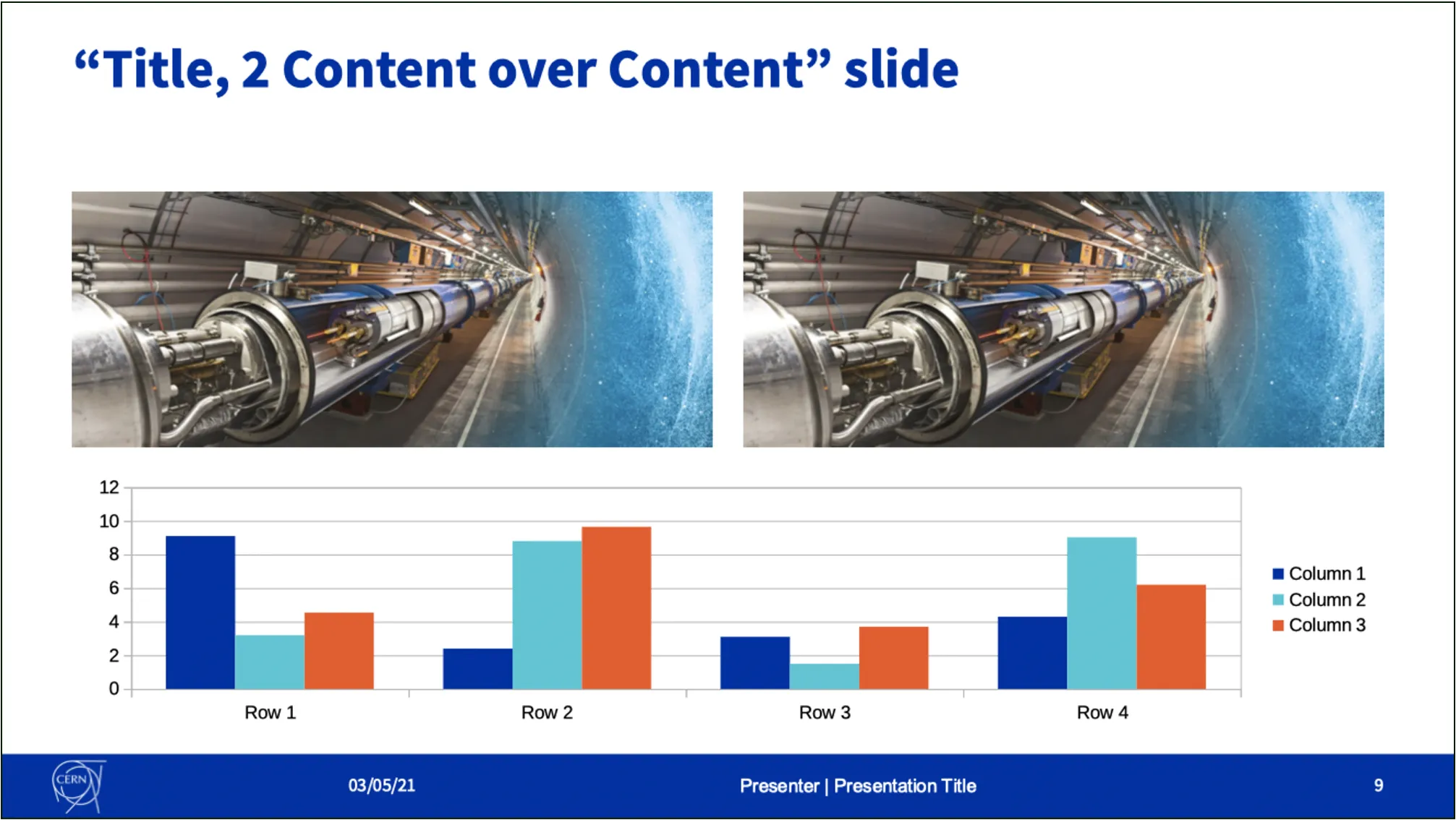
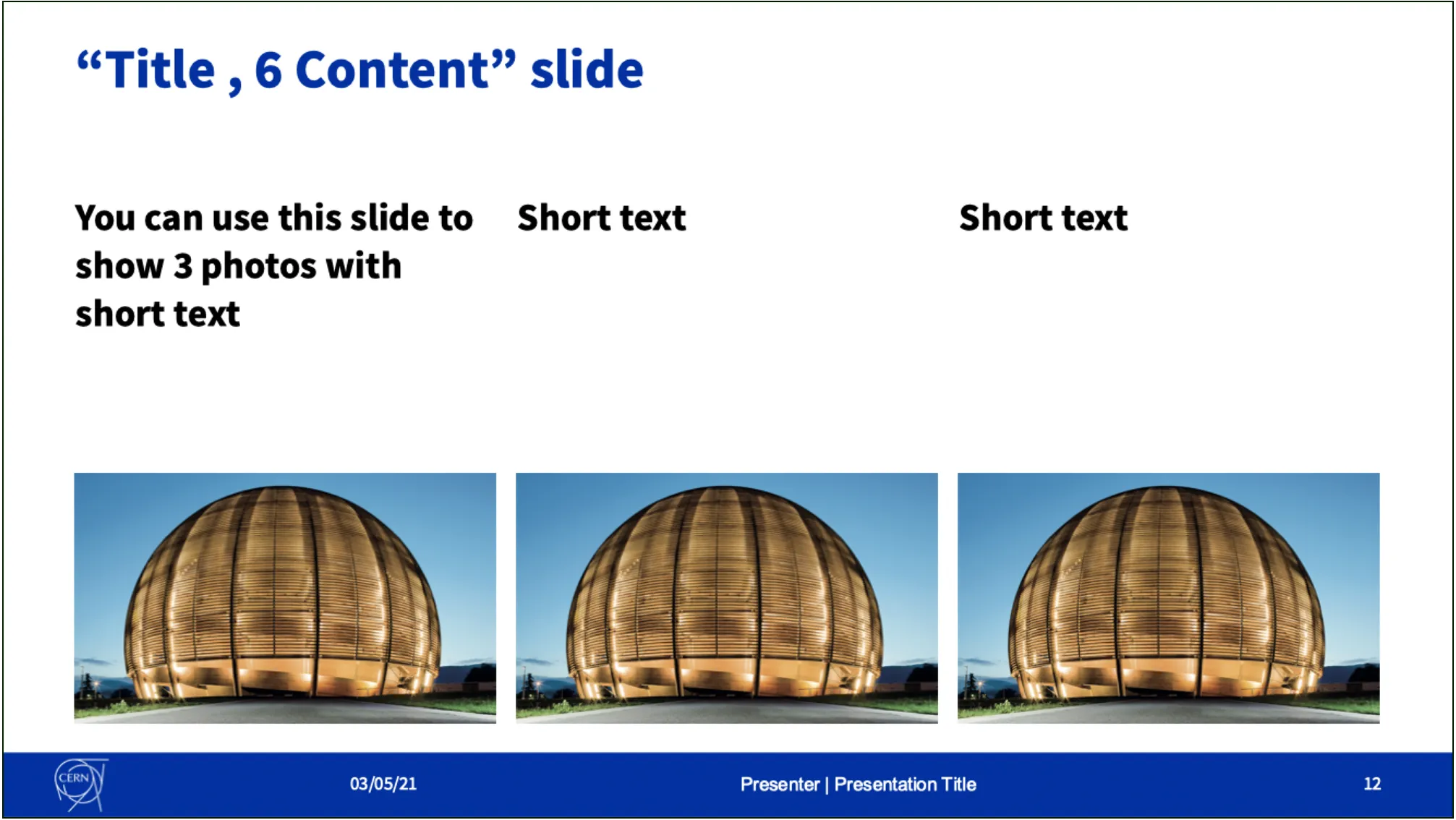
Choosing slide styles
Several slide types are included in each presentation template
Icon Set
LibreOffice Template
Very often, PC users have problems with image quality using MS PowerPoint.
How to turn off picture compression:
1. Click File > Options.
2. In the Options box, click Advanced.
3. In the list under Image Size and Quality, do one of the following.
4. Under Image Size and Quality, select the Do not compress images in file check box. This setting applies to only the document that you selected in the Image Size and Quality list, unless you also select All New Documents.